
User Experience Optimization: Why Your Users Want Fewer Clices
Effective user experience optimization starts the moment a product manager opens their favorite project management tool to update a single task status, only to be greeted by a full-screen promotional banner, three different popup notification badges, a rearranged primary navigation menu, and a multi-step confirmation modal just to move a card from “In Progress” to “Done.” What should have taken three seconds turns into an exercise in navigation fatigue. This everyday frustration highlights a quiet trap that many software development teams fall into: treating every roadmap planning session as an excuse to build something new, rather than making what already exists frictionless.
An experienced product manager opens their favorite project management tool to update a single task status, only to be greeted by a full-screen promotional banner, three different popup notification badges, a rearranged primary navigation menu, and a multi-step confirmation modal just to move a card from “In Progress” to “Done.” What should have taken three seconds turns into an exercise in navigation fatigue. This everyday frustration highlights a quiet trap that many software development teams fall into: treating every roadmap planning session as an excuse to build something new, rather than making what already exists frictionless.
When digital products start to plateau, the immediate instinct across many boardrooms is to ship more features. Companies assume that a larger feature checklist will attract enterprise buyers, silence vocal critics, and outpace market competitors. Yet, real users rarely judge software by its raw feature count. They judge it by how quickly, painlessly, and reliably it helps them achieve their goals. Engaging in user experience optimization requires recognizing that every button, menu layer, and workflow choice exacts a real cognitive tax on the people relying on your product every day.
Why More Features Can Make Your Product Harder to Use
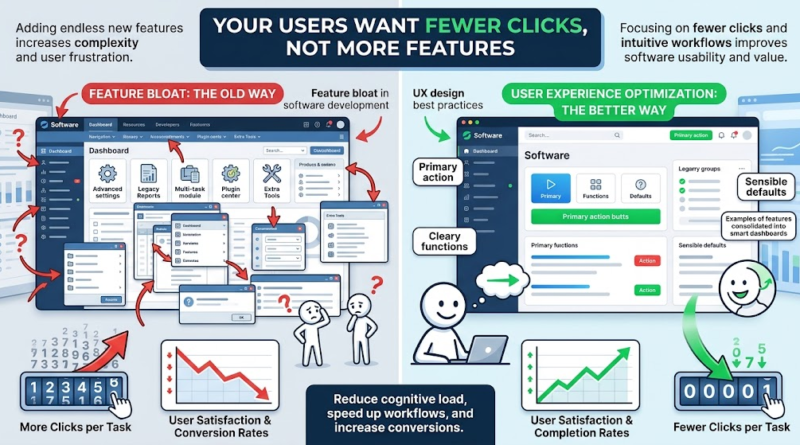
The temptation to keep building is understandable. In competitive markets, adding capabilities feels like progress. However, uncritical expansion often leads to feature bloat in software development, turning clean, focused tools into crowded digital workshops where nothing is easy to find.
Consider a modern project management platform that continually introduces new dashboard widgets, complex time-tracking modules, and customizable status workflows. While these additions might look impressive on a feature comparison matrix, they often make simple actions—like creating and assigning a task—burdensome.
This happens because there is a fundamental difference between adding raw functionality and actually solving user problems. Functionality asks: “Can our software technically do this?” Problem-solving asks: “Does this help the user complete their work with the least amount of friction?”
When crowded navigation, confusing sub-menus, and unnecessary configuration options pile up, users become overwhelmed. They do not care about exploring every obscure corner of your application; they care about finishing their work and moving on with their day. Effective UX design best practices require rigorous product prioritization, relying on continuous user research to ensure that every new addition serves a proven need rather than just a checklist. While additional capabilities are valuable when they solve genuine user needs, they should never come at the expense of clarity and usability.
Every Extra Click Has a Cost: Time, Friction, and Lost Conversions
Every interaction inside a software product carries a cost. When an interface forces users through unnecessary steps, it increases their cognitive load and stretches out task completion time. Whether it is a complicated user registration flow, an overly granular checkout process, or a dashboard that requires multiple clicks to surface key metrics, excessive friction exhausts users.
To understand this impact, consider a hypothetical subscription-based software product where completing a standard weekly report requires six distinct navigation actions across separate pages. If a product team streamlines that workflow down to three intuitive steps, the reduction in interaction effort is substantial. For an employee who completes this report weekly, cutting those steps saves dozens of clicks per month, directly lowering frustration and mental fatigue.
The relationship between usability, customer satisfaction, and conversion opportunities is direct, but it is also contextual. The true impact of an extra click depends heavily on task complexity and user expectations. A lengthy setup process might be acceptable during initial enterprise onboarding, but the exact same friction during daily data entry will cause severe user drop-off. When small usability problems repeat across a large user base, they compound into high churn rates and inflated customer support tickets. Improving software usability is ultimately about respecting the user’s time and attention.
How to Spot the User Journeys That Need Fewer Steps
Improving software usability begins with a clear-eyed audit of your existing product flows. Pinpointing where users struggle requires a structured approach that combines quantitative analytics with qualitative observation.
Product teams looking to simplify their applications can follow a systematic diagnostic framework:
-
Map critical user journeys: Document every step a user must take from their initial entry point to achieving their core objective, noting every intermediate screen and decision point.
-
Analyze quantitative drop-off: Review product analytics to pinpoint exactly where users abandon workflows or spend unexpected amounts of time.
-
Examine qualitative feedback: Review session recordings, support ticket trends, and user interview notes to understand where people express verbal or behavioral frustration.
-
Prioritize based on impact: Rank identified friction points by multiplying the frequency of the task by the severity of the friction and the business value of the affected workflow.
It is vital to investigate why a step exists before simply deleting it. Not all friction is bad UX. Some steps exist for critical reasons, such as security compliance, payment verification, data accuracy, or informed consent. Always verify the underlying purpose of a workflow before trimming it down. For teams seeking professional guidance on streamlining these interactions, partnering with experts in UI/UX design and product development can provide an objective perspective on complex application architectures.
5 Practical Ways to Reduce Clicks Without Functionality Loss
Reducing clicks is not about stripping away capabilities until your software is empty. It is about removing interactions that do not meaningfully help users complete their goals. Here are five practical techniques to achieve a leaner, more intuitive user experience:
1. Simplify Navigation
-
The Problem: Scattered menus and redundant pathways force users to hunt for core functions.
-
How to Implement: Group related tools logically under clear, descriptive headings. Remove dead-end pages and ensure primary actions are accessible within one or two clicks from any major screen.
-
Realistic Example: A SaaS analytics platform consolidates four separate reporting sub-menus into a single, unified dashboard with contextual filtering, reducing navigation clicks by half.
2. Use Sensible Defaults and Smart Autofill
-
The Problem: Forcing users to manually input predictable information slows them down and increases error rates.
-
How to Implement: Pre-populate fields with intelligent default values based on historical user behavior, geolocation, or account settings, while always allowing users to edit or override them.
-
Realistic Example: An e-commerce mobile application automatically selects the user’s preferred shipping address and payment method during checkout, turning a four-screen form into a single confirmation click.
3. Combine Repetitive Steps
-
The Problem: Fragmented workflows force users to save, close, and reopen records across multiple sequential screens.
-
How to Implement: Consolidate related actions into single-page views or progressive disclosure modals where users can review and execute changes at once.
-
Realistic Example: An internal CRM tool replaces a multi-step modal sequence for updating client contact details with an inline editing table, allowing direct updates in place.
4. Automate Predictable Tasks
-
The Problem: Requiring manual execution for routine, repetitive processes wastes user time and invites mistakes.
-
How to Implement: Implement templates, saved preferences, cross-platform integrations, or conditional rules that handle routine actions automatically.
-
Realistic Example: A customer support ticketing system automatically assigns incoming requests to specific team members based on keyword routing rules, eliminating manual triage.
5. Design Around the User’s Primary Goal
-
The Problem: Interfaces that treat every option with equal visual weight make the most important actions hard to spot.
-
How to Implement: Highlight primary user tasks through clear visual hierarchy, keeping secondary options accessible but out of the immediate line of sight.
-
Realistic Example: A project management application surfaces the “Create Task” button prominently in the top header while tucking advanced administrative settings away in a secondary menu.
For organizations looking to implement these adjustments at scale, exploring business process automation can uncover further opportunities to streamline complex internal and external operations.
Measure What Matters: Proving That a Simpler UX Works
Making interface changes based on intuition alone is risky. To ensure that your efforts to how to improve user experience in software are actually working, you need a rigorous measurement framework.
Teams should establish clear performance baselines before altering any interface. Key metrics to track include:
-
Task completion rate: The percentage of users who successfully finish a designated workflow.
-
Time on task: The duration required for a user to reach the desired outcome.
-
Workflow abandonment: The specific points where users quit mid-process.
-
Error and rework rates: How often users make mistakes, click incorrect buttons, or have to correct submitted information.
-
Support ticket volume: The frequency of customer inquiries related to specific navigation confusion.
Consider a hypothetical A/B test where a product team simplifies a software sign-up flow from five steps to three. By tracking user behavior over a four-week testing period, the team might observe a measurable reduction in average task completion time and a decrease in form abandonment.
Crucially, teams must evaluate the quality of the completed tasks, not just the raw speed. A shorter workflow that accidentally induces user errors or incorrect data entry is a failure of design, no matter how few clicks it requires. Ongoing measurement helps teams refine their software iteratively rather than guessing what users want next.
If your team is navigating the complexities of feature bloat, clunky navigation, or declining user engagement, it may be time to reevaluate your product roadmap. Building a successful digital product requires balancing robust technical capabilities with a relentless focus on user clarity. To discuss your current product architecture, review your existing workflows, or explore a tailored custom software development services solution, connect with our experienced software development team today.
